Getting Started › Admins
Admin guide
Setting up a season as a patrol director, from the roster to a calendar patrollers can sign up on. Most of it is done once a year.
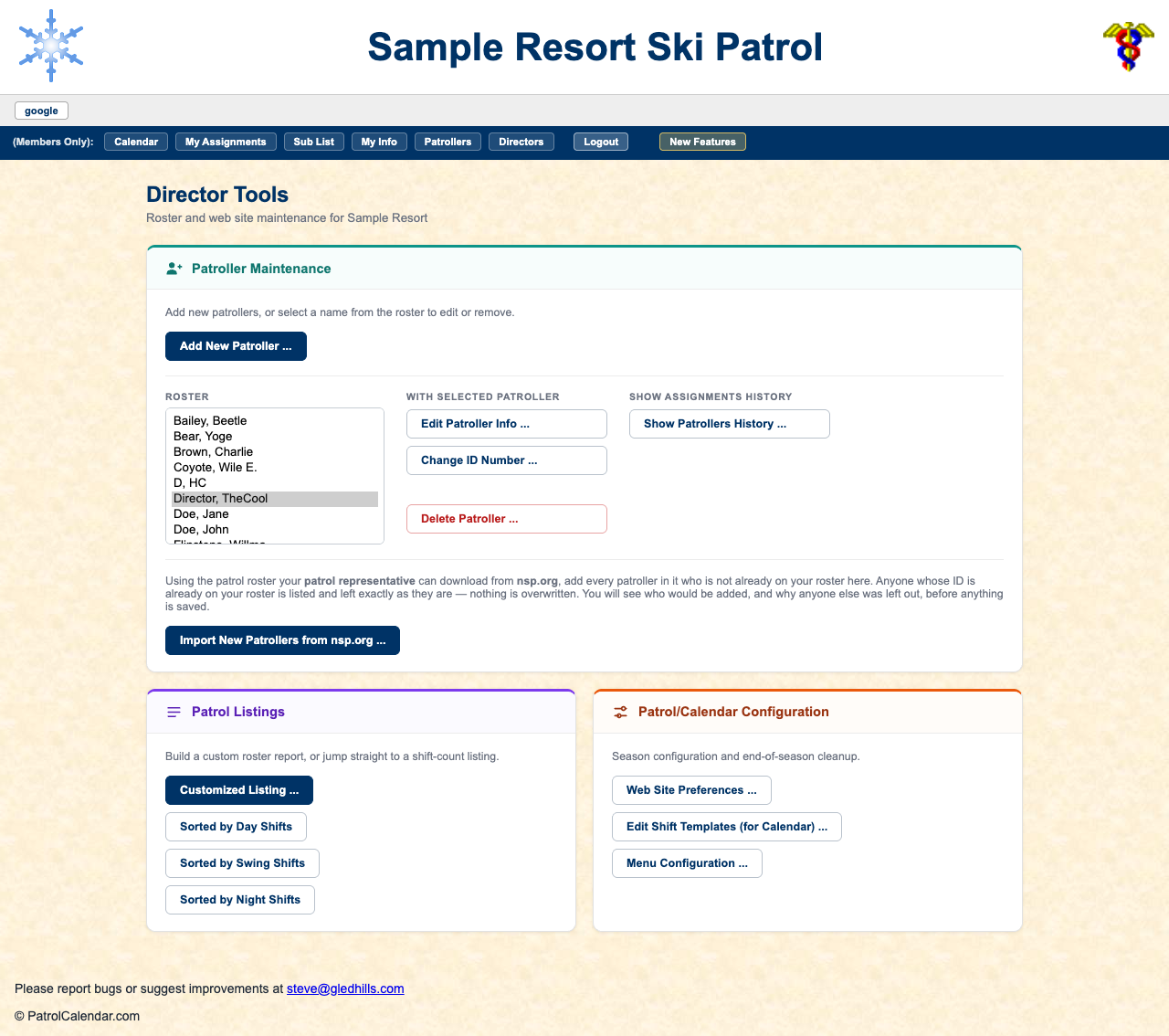
1. The Directors page
Everything here lives behind in the members bar. It only works if your own roster record has the director flag; if it does not, ask whoever set your patrol up, or write to Steve@Gledhills.com. If you are new to the site as a patroller too, read the patroller guide first.
2. Get the roster right first
Shifts, emails and reminders all key off the roster, so start there.
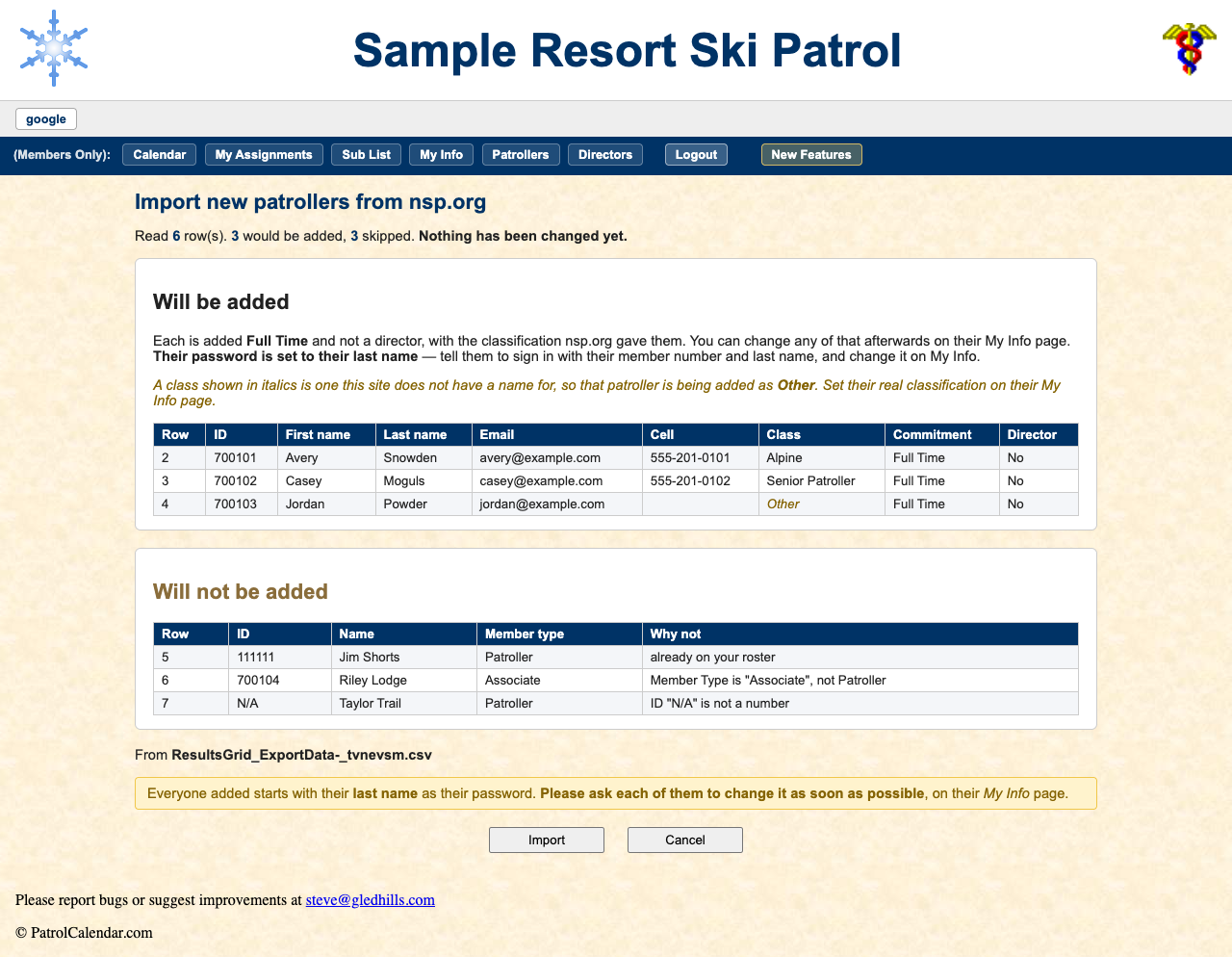
Import from nsp.org
takes the ResultsGrid_ExportData.csv
your patrol representative downloads from nsp.org. It only ever adds, and it shows
you a preview before writing anything. More…
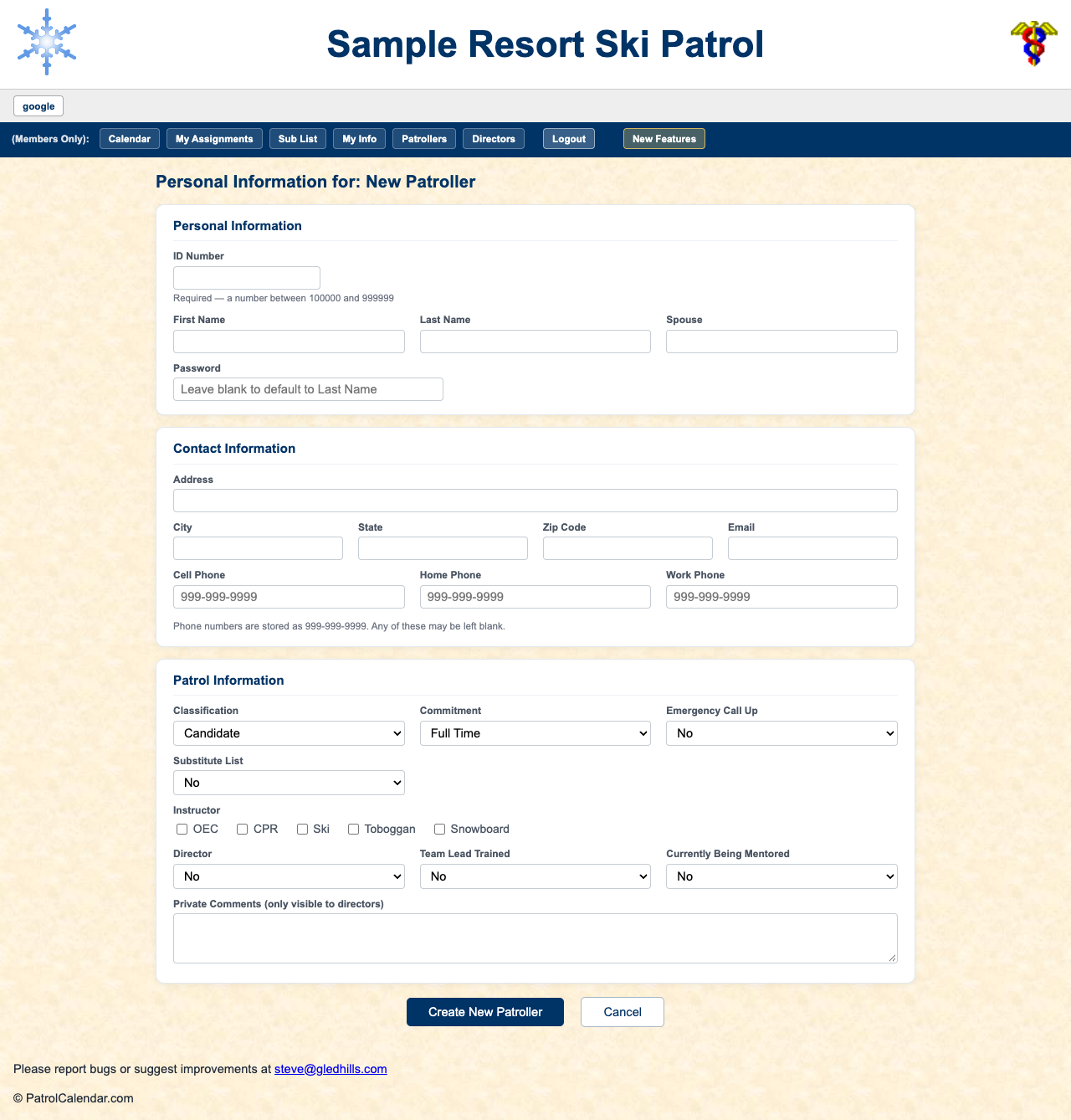
One at a time
, , and work on one member. Choose the name in the roster list first, except for Add. Editing is how you fix someone's email address, classification, director flag and instructor qualifications.
shows any member's shifts. More…
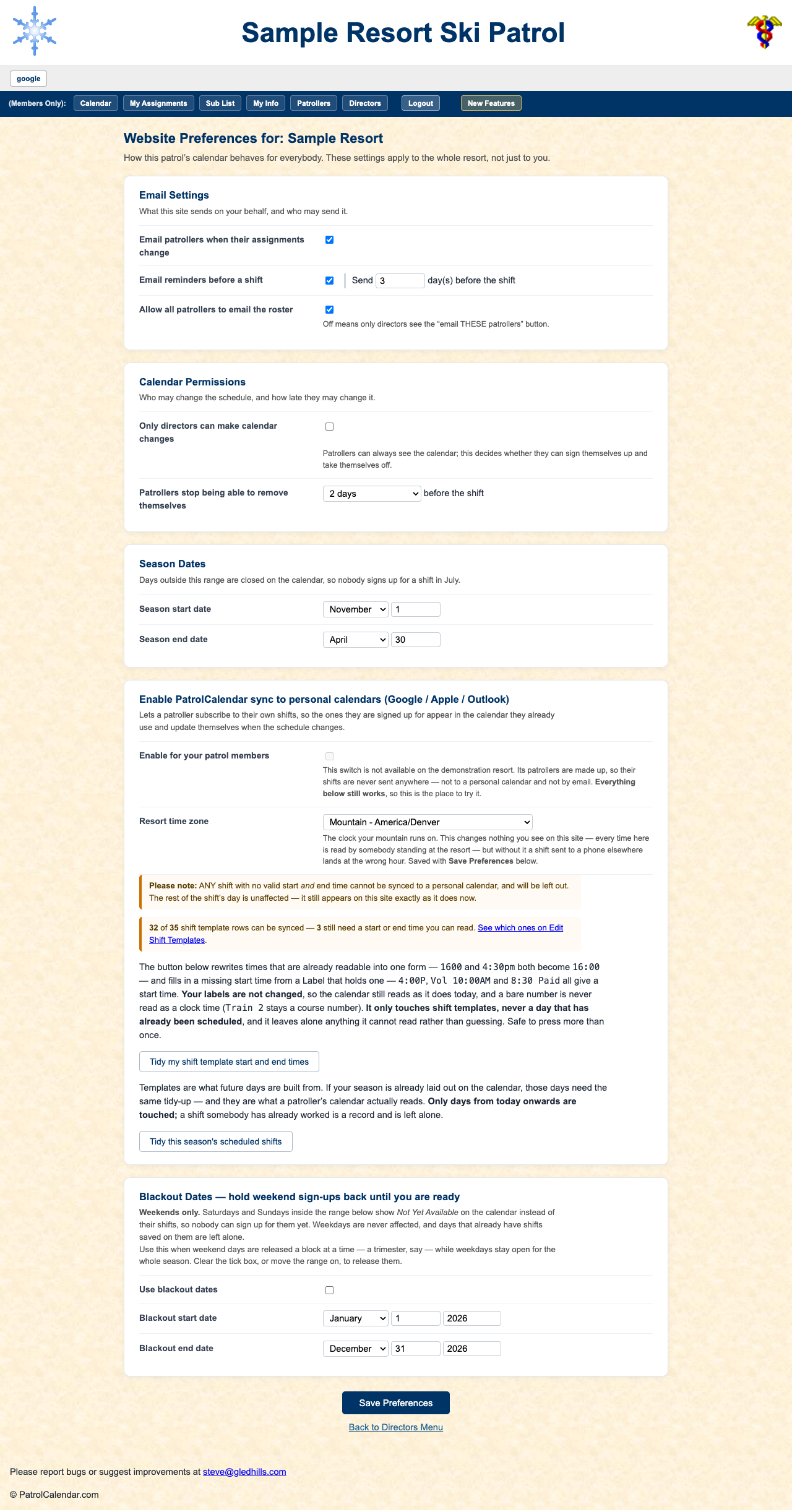
3. Web Site Preferences
sets how the calendar behaves for the whole patrol:
- Email settings: change notices, reminders and how many days ahead, and whether ordinary patrollers may email the roster.
- Calendar permissions: whether only directors can change the calendar, and how close to a shift patrollers may still remove themselves.
- Season dates: days outside them are closed, so nobody signs up for July.
- Calendar sync and time zone: More…
- Blackout dates: hold weekend sign-ups back (for example while instructors get first pick), then release them.
4. Build your shift templates
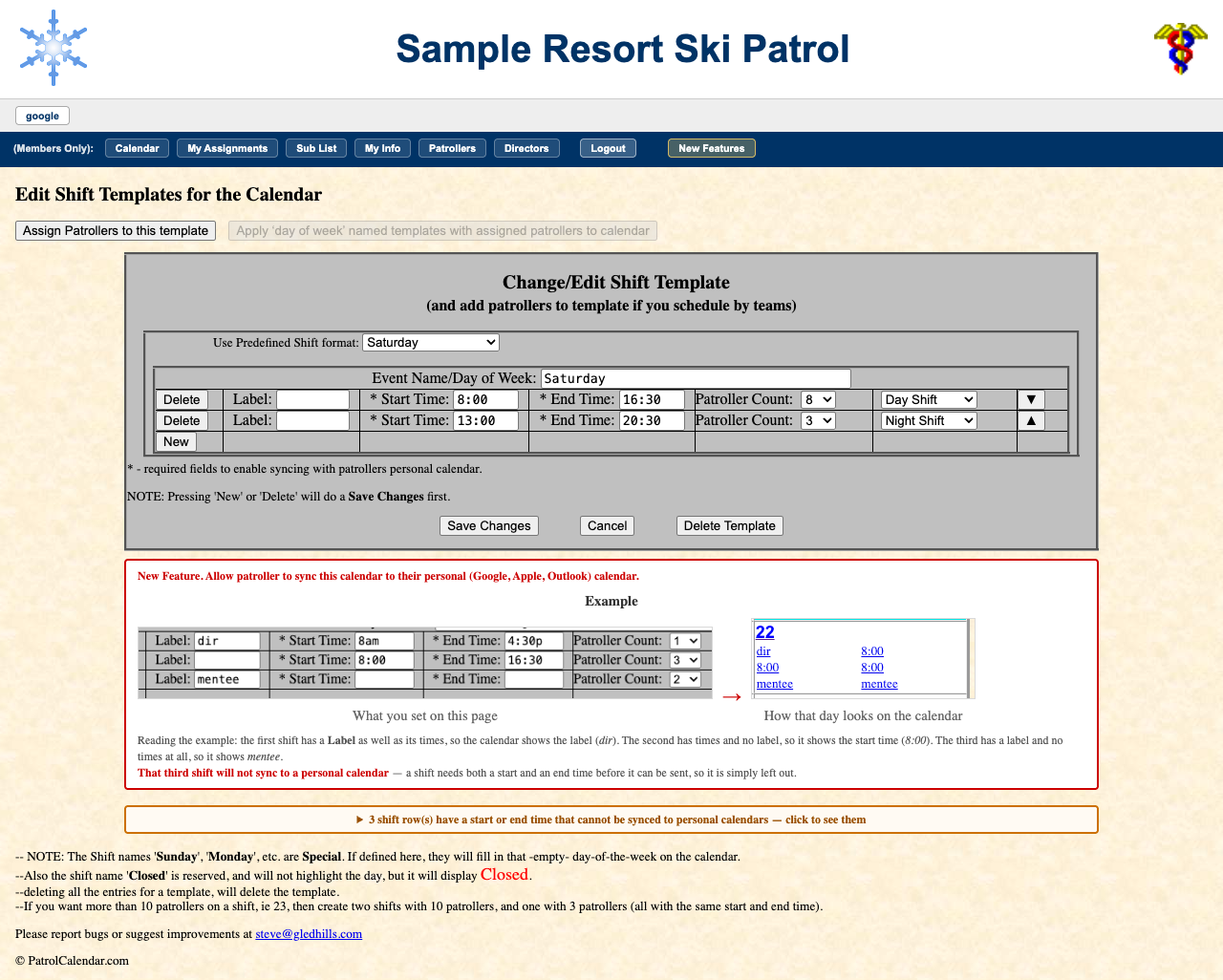
defines the shape of a day: each row is one shift with a label, start and end time, a patroller count and a shift type. Choose a template from Use Predefined Shift format to edit it, or --New Shift Style-- to start one.
Name a template after a weekday (Saturday, Monday...) and the calendar draws it on every one of those days in your season automatically. That alone fills most seasons. A template named Closed marks a day closed.
Teams, and applying them to dates
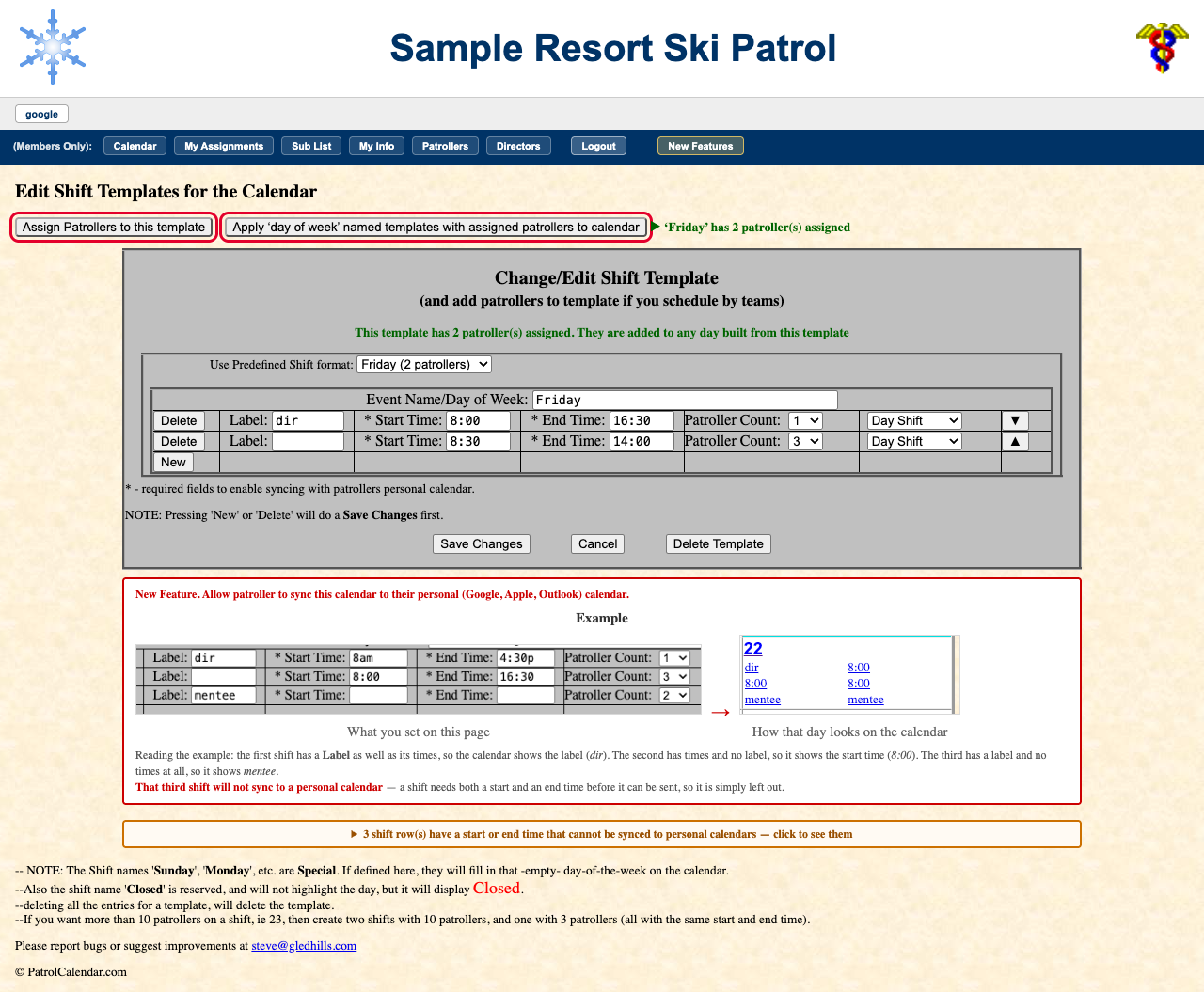
If you schedule by teams, assign patrollers to a template, then apply it to a date range to put that team on every matching day. See the worked example below.
5. Worked example: a Saturday team, Dec 5 to Apr 3
Say three patrollers (Yoge Bear, Wile E. Coyote and Peter Pan, as Sample spells them) are your Saturday crew for the whole season. Rather than putting them on 18 Saturdays one at a time, you pencil them into the Saturday template once, then apply that template to the date range.
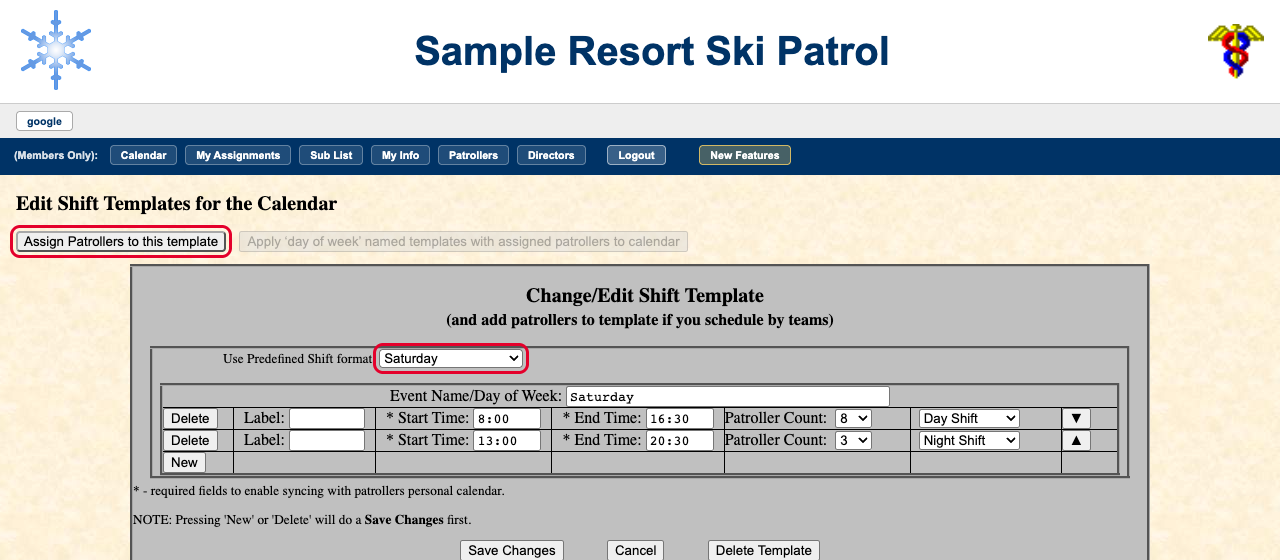
Step 1: open the Saturday template
Directors → , then choose Saturday in Use Predefined Shift format. The template has to be named exactly after the weekday; that is how Apply knows which days to put it on.
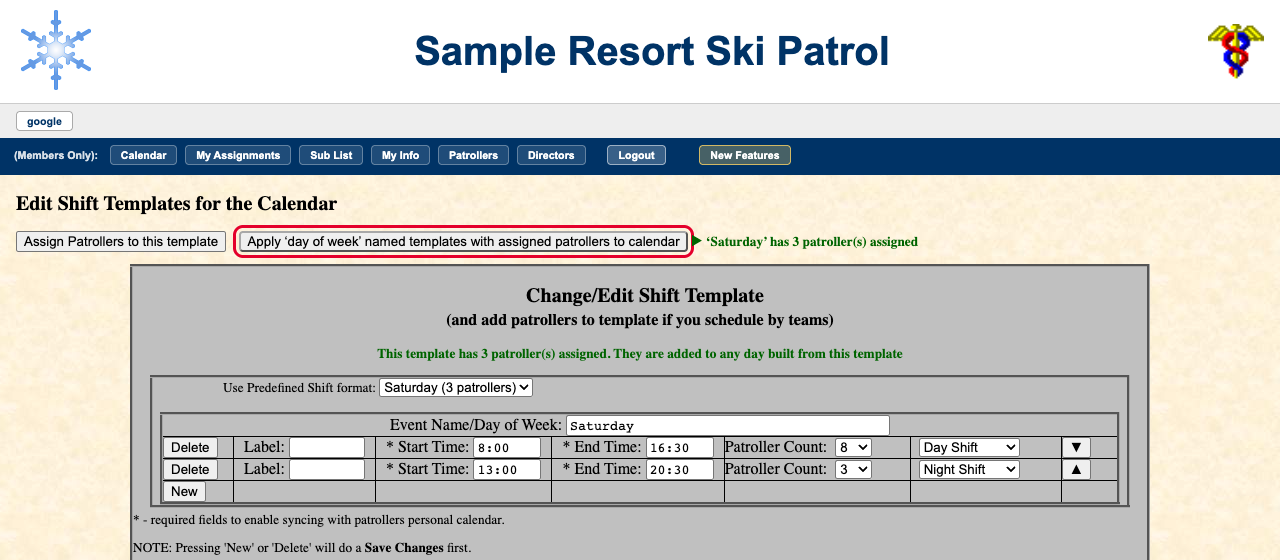
The Apply button is greyed out for now. That is expected, because the template has nobody on it yet. Press .
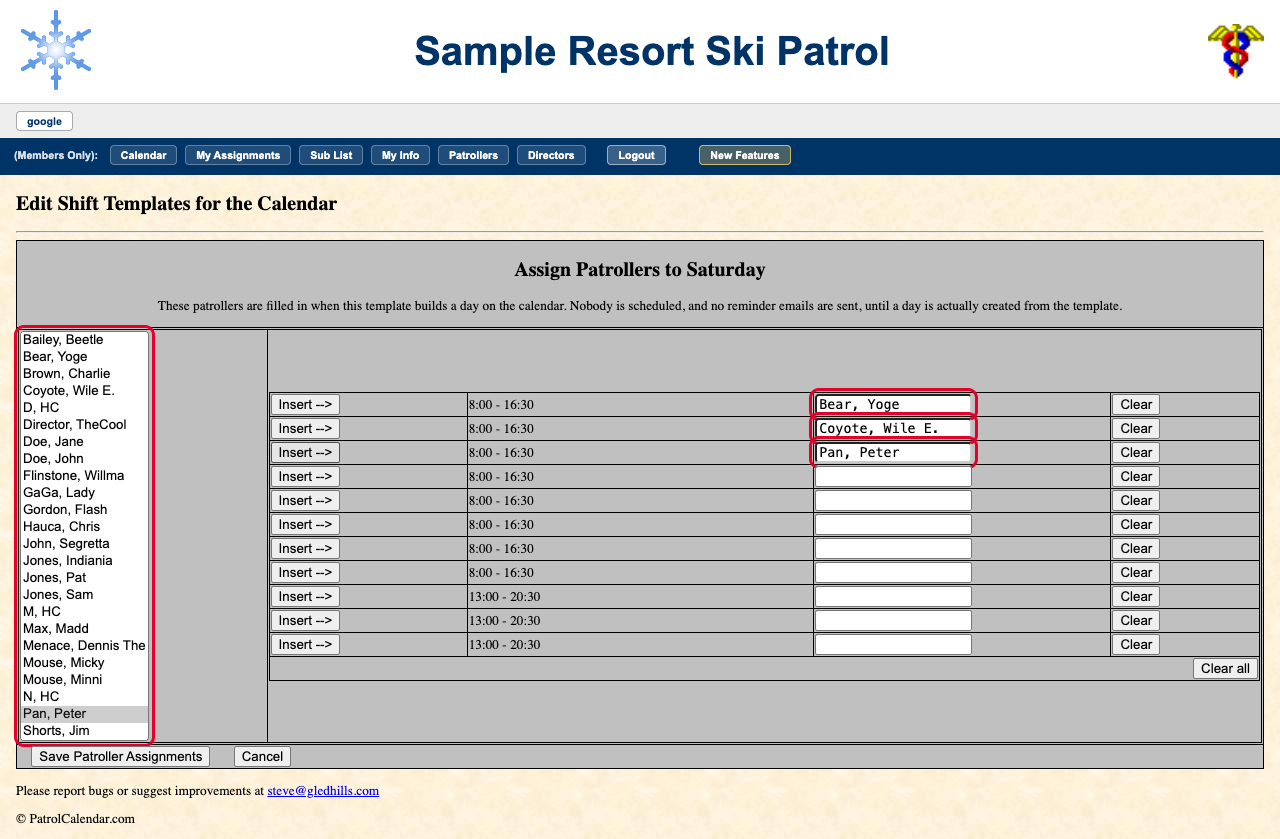
Step 2: put the team on the template
Each line on the right is one place on a shift; here there are eight 8:00–16:30 places and three 13:00–20:30 places. Click a name in the roster list on the left, then Insert --> on the line you want them in. Repeat for each person. Clear empties one line if you put someone in the wrong place. The same person cannot go on the same shift twice.
Press Save Patroller Assignments. Nothing appears on the calendar yet, and nobody is emailed: the names are only pencilled in.
Step 3: apply it to the date range
Back on the template page it now says ‘Saturday’ has 3 patroller(s) assigned, and the Apply button is live. Press it.
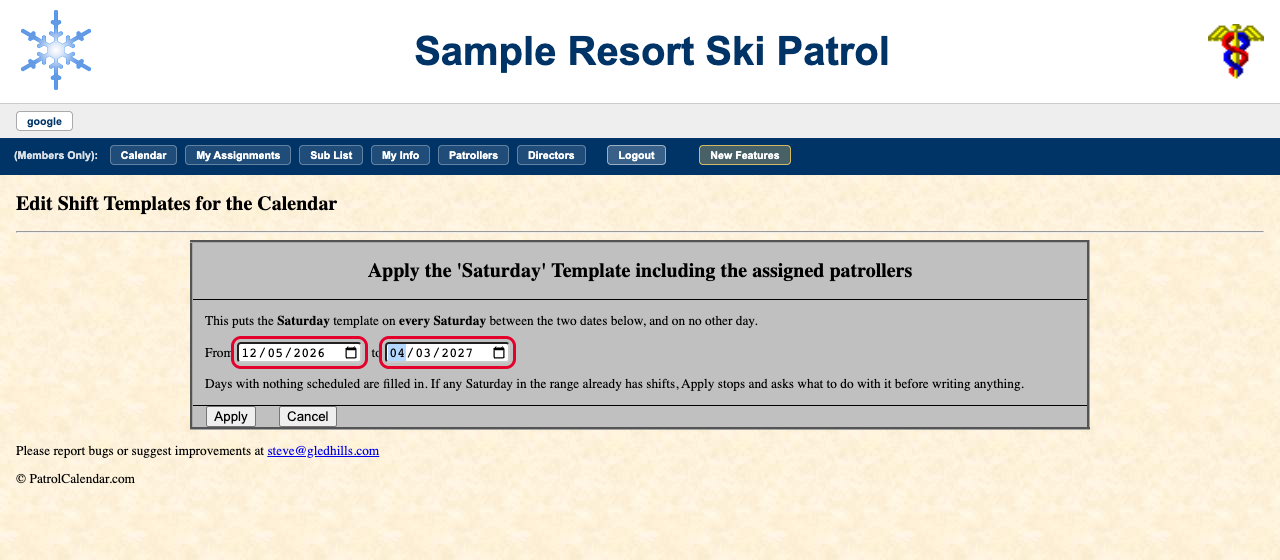
Enter the range, here From 12/05/2026 to 04/03/2027. (It starts filled in with your whole season.) Only Saturdays inside the range are affected, so the dates do not have to be Saturdays themselves. Press Apply.
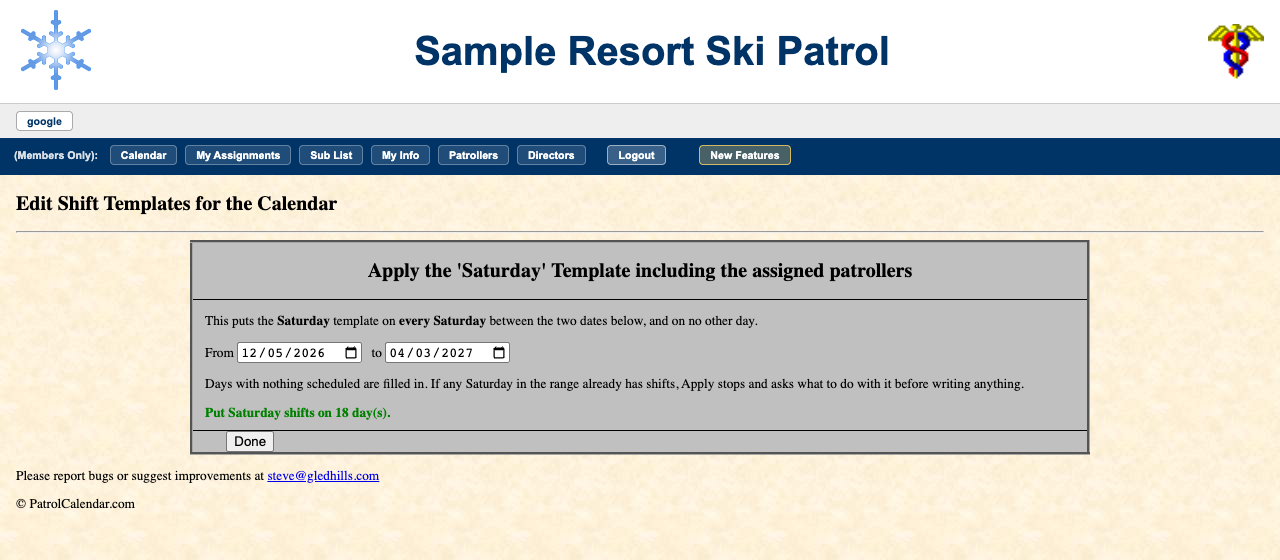
Step 4: check the calendar
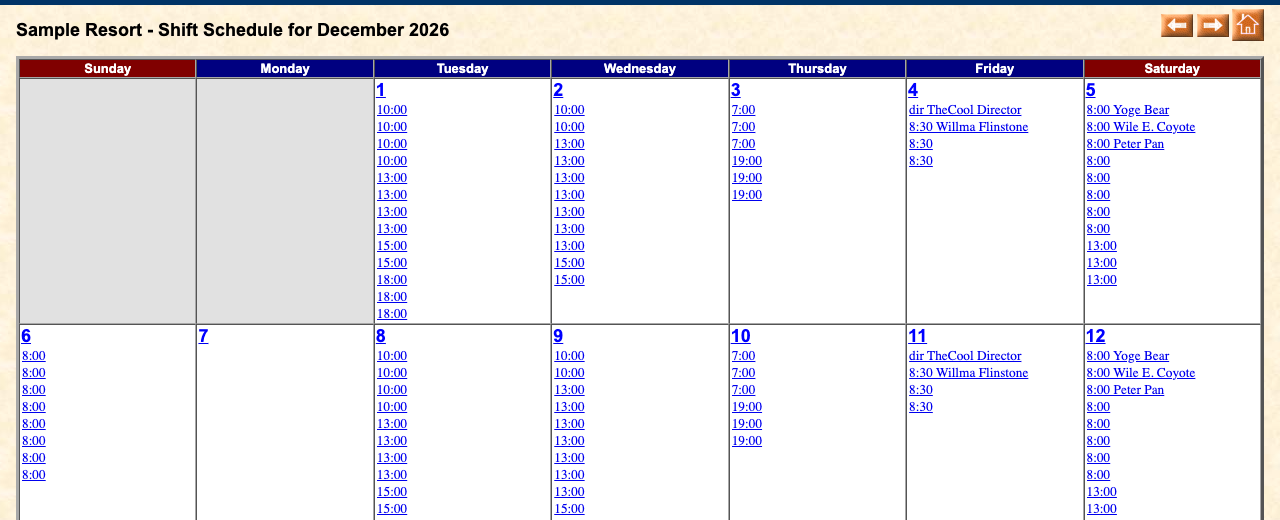
Every Saturday from December 5 to April 3 now has the three names on its 8:00 shift. They are scheduled exactly as if they had signed up themselves: the shifts show in their My Assignments, they get the usual reminders, and they can give a shift away or swap it like any other. The remaining open places are left for anyone to sign up for.
If some Saturdays already have shifts
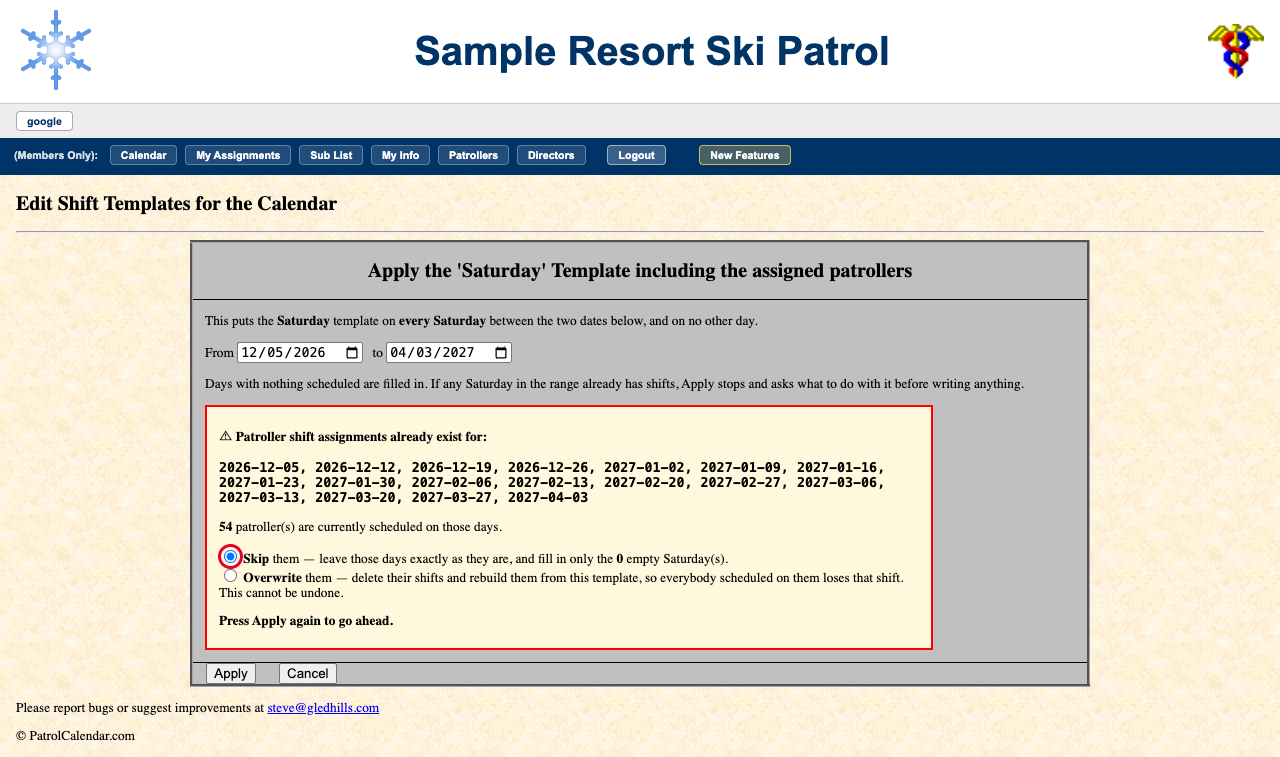
Apply never quietly rewrites a day that is already set up. If any Saturday in the range already has shifts, it stops before writing anything, lists those dates, and asks what to do:
- Skip (the default): leave those days exactly as they are, and fill in only the empty Saturdays.
- Overwrite: delete those days' shifts, and everyone already signed up on them, and rebuild them from the template with your team. You are asked to confirm a second time. This cannot be undone.
Press Apply again to go ahead, or Cancel to leave everything alone.
Changing the team later
- Changing the names on the template does not change Saturdays already applied; it only affects days built from the template afterwards.
- To swap someone on one Saturday, click that date on the calendar, then .
- To change the team for the rest of the season, update the template and apply it again from today with Overwrite. Remember that overwrite also removes anyone else who has signed up on those Saturdays.
123456, password patrolCalendar). It is reset every night, so nothing you
apply there lasts.6. Fixing one day
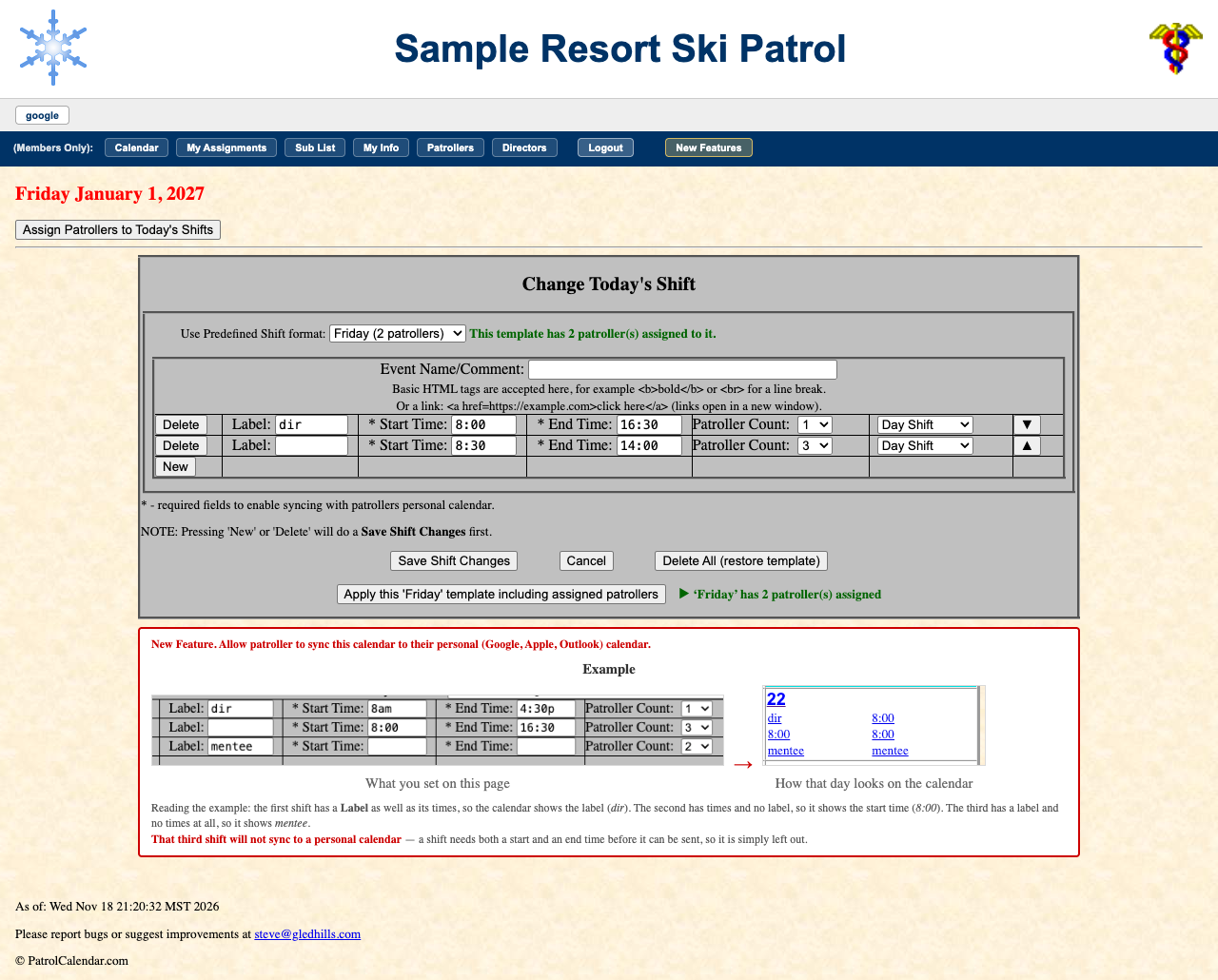
Click a date number on the calendar to edit that day alone: add or delete a row (New/Delete), change times or patroller counts, reorder rows, add a comment, or swap the whole day to another template. Delete All (restore template) puts the day back to its weekday template.
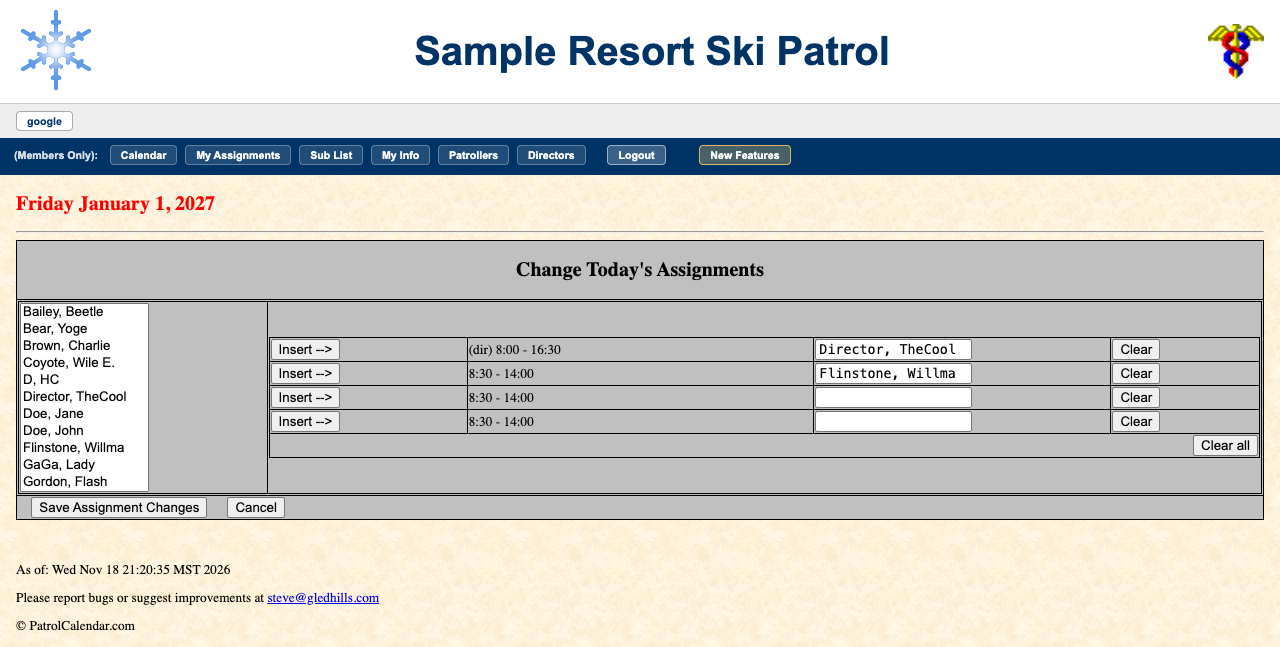
opens a grid for placing people directly.
7. Listing and emailing patrollers
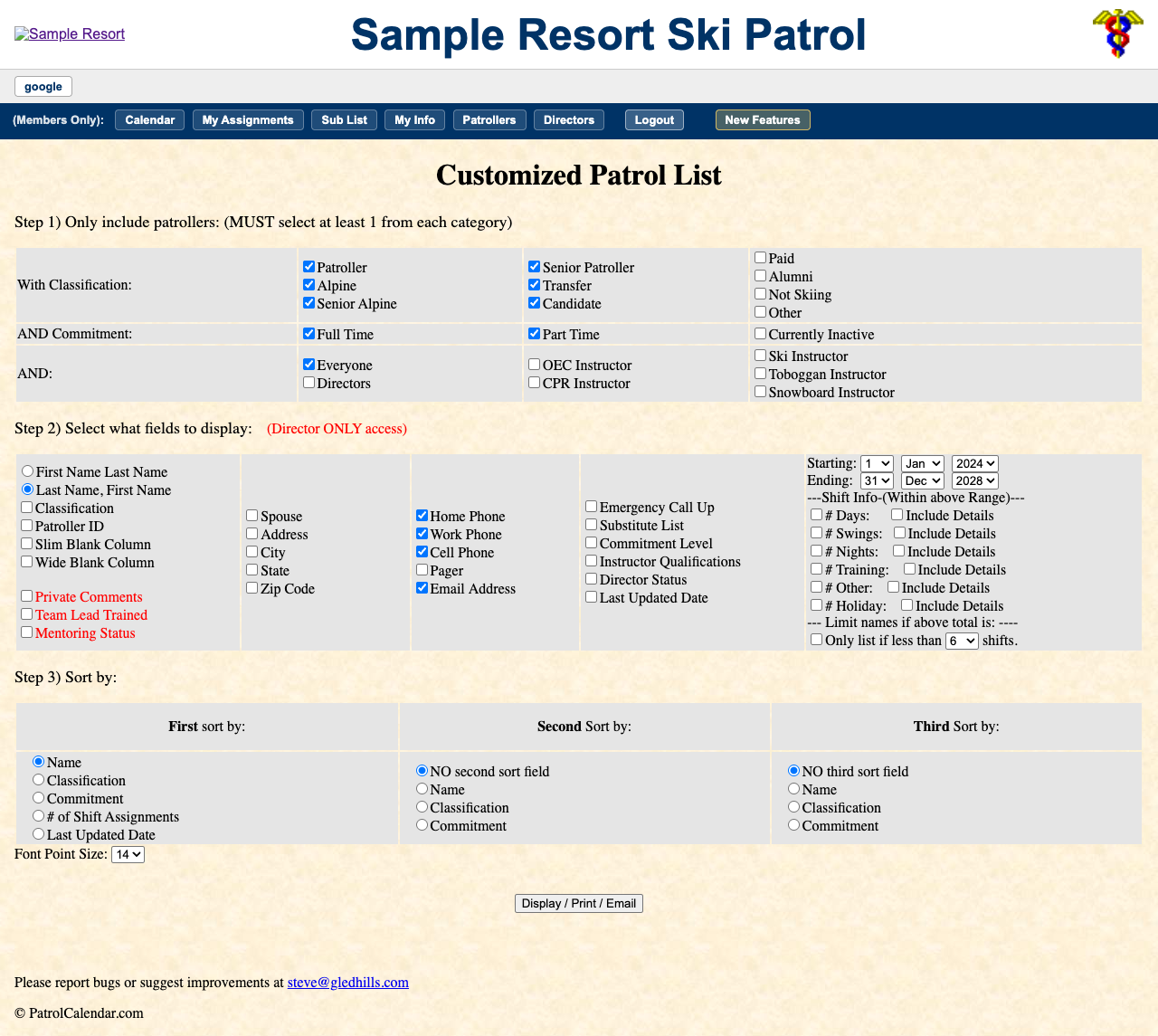
builds a roster report: choose who (classification, commitment, instructor qualifications, or who is short of shifts in a date range), which columns, and the sort order. are quick ready-made versions.
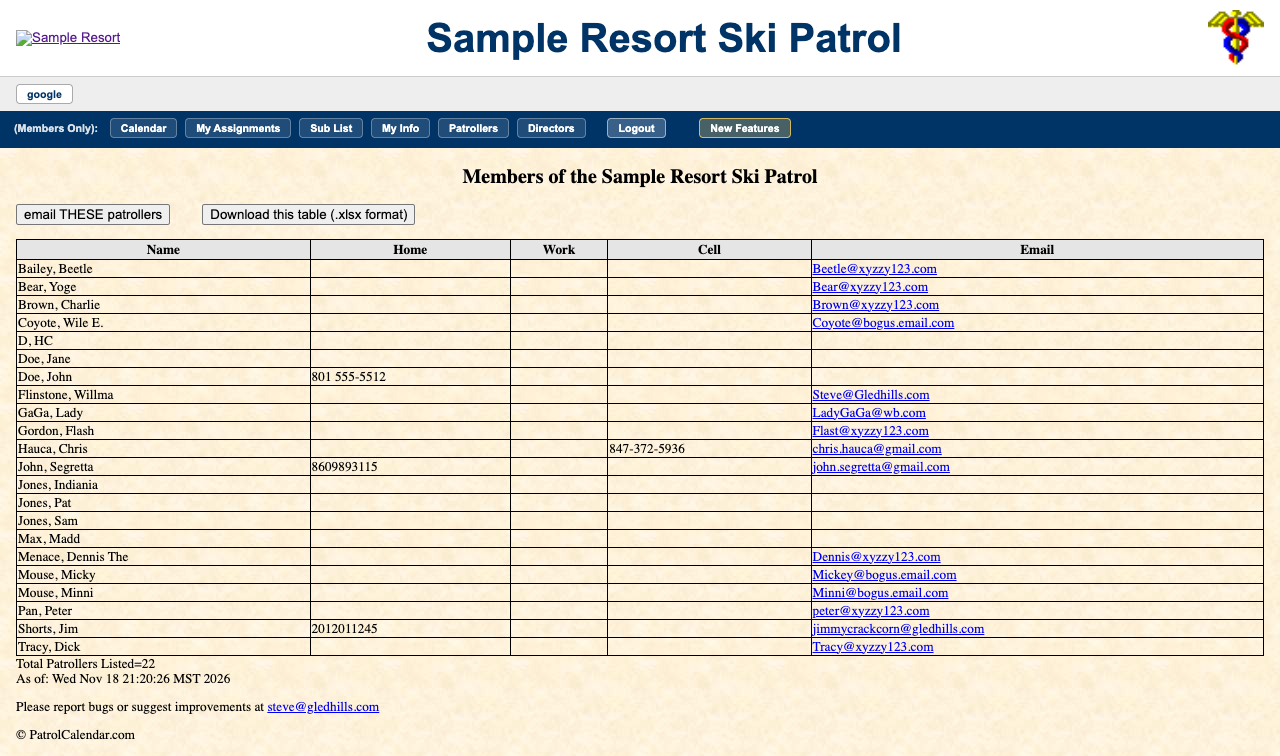
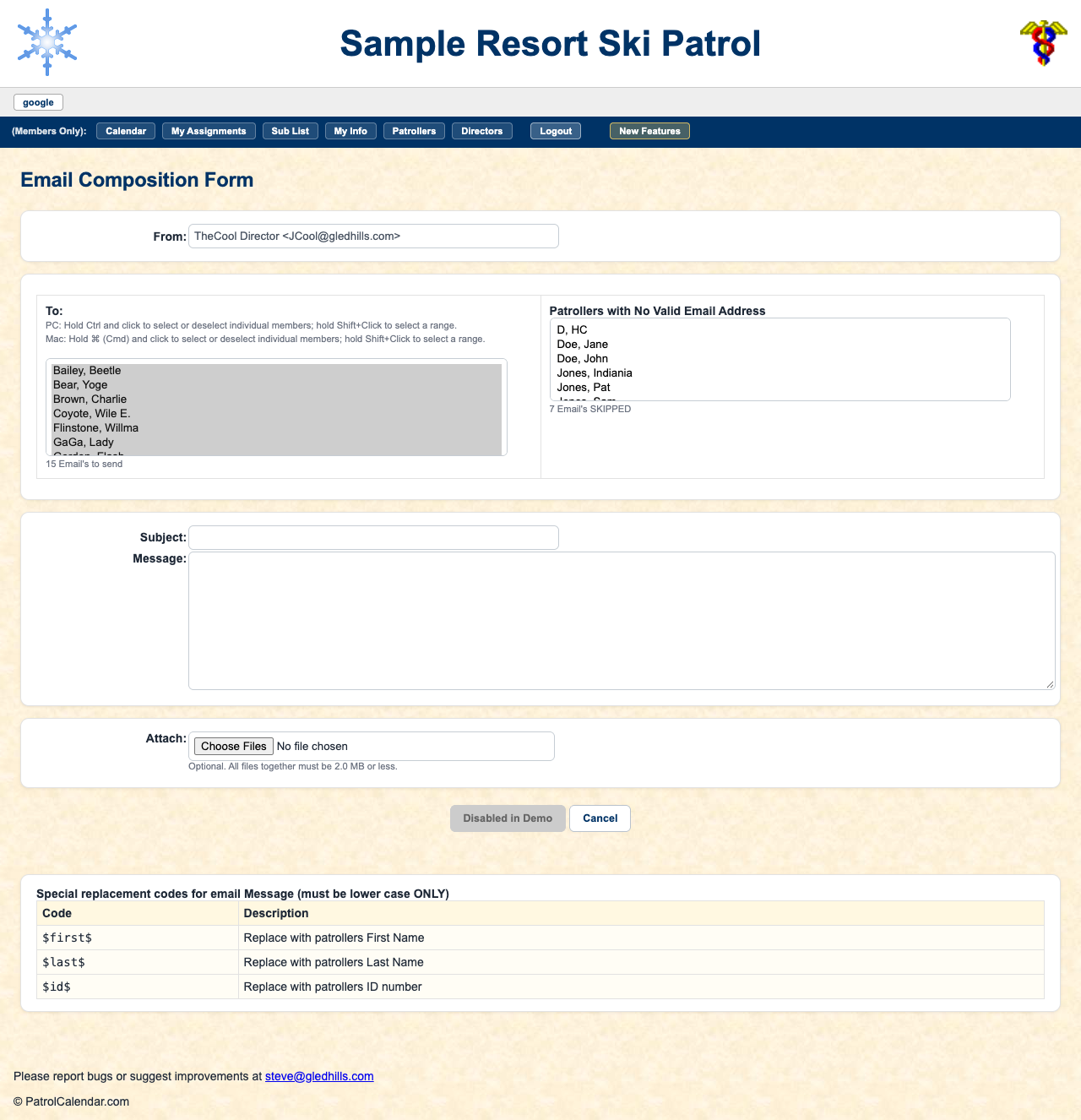
mails exactly the people the list showed, with optional
attachments up to 2 MB. $first$, $last$ and $id$ in the
message are replaced per person.
8. Your own menu buttons
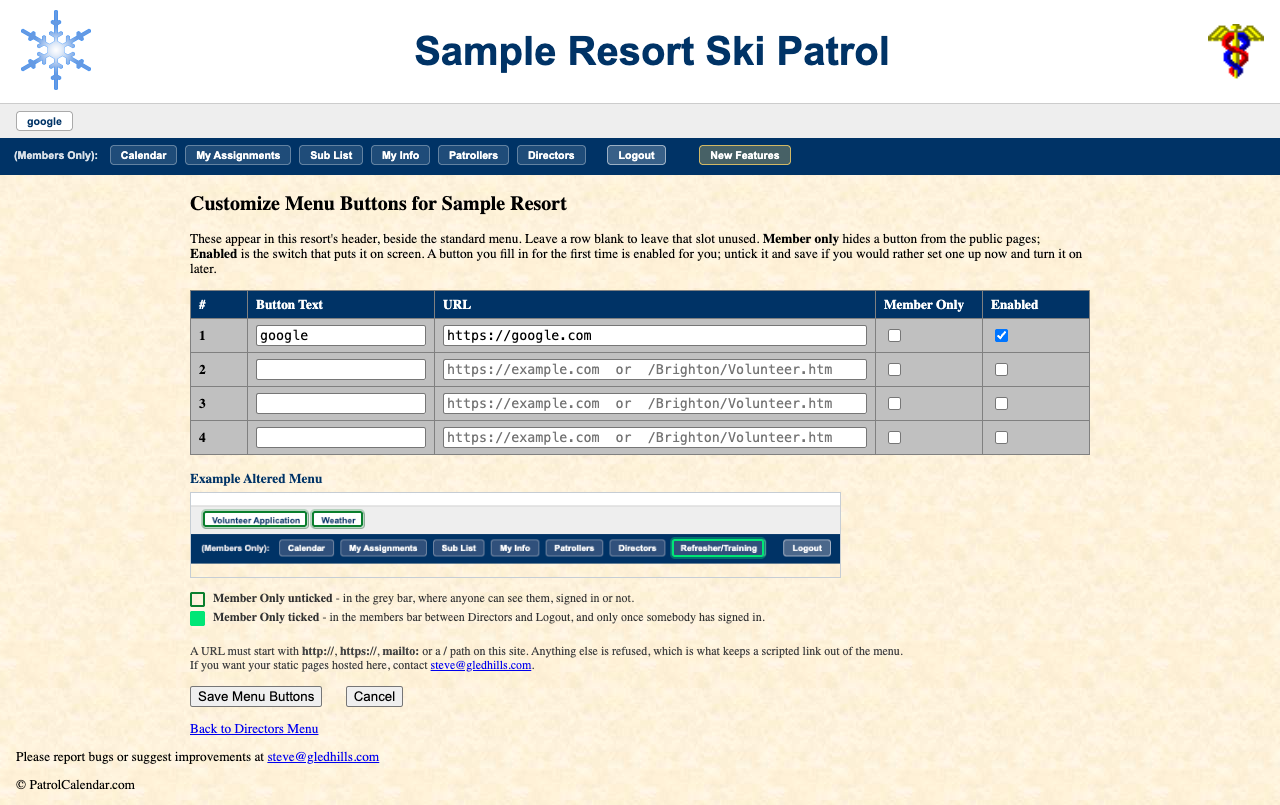
adds up to four buttons of your own to every member's header. More…
9. Things to be careful with
- Delete Patroller removes someone from the roster, and their history with them.
- Overwrite, when applying a template, deletes the patrollers on those days.
- Changing a day's shift format removes that day's shifts and whoever was on them. You are told how many people first.
None of these can be undone from the site. If you remove something you needed, write to Steve@Gledhills.com soon: the database is backed up every three hours.
Try anything risky on the Sample resort first: director ID
123456, password patrolCalendar. It is reset every night.
10. Keeping up with changes
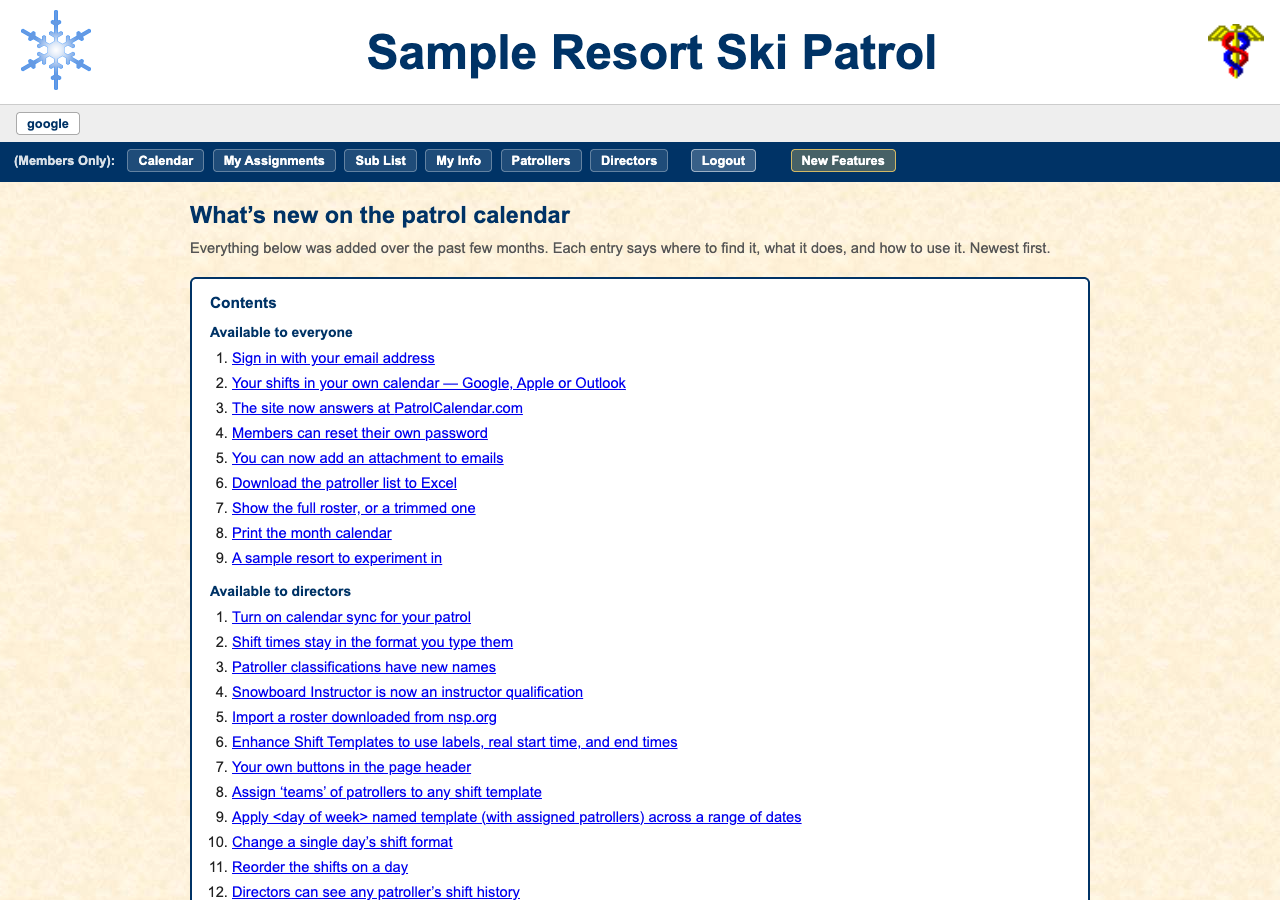
in the members bar (directors only) describes everything added lately. Each one also has its own illustrated page in this guide; see the admin section of the index.
PatrolCalendar is shift scheduling for ski patrols, maintained by one volunteer patroller and free to use. Questions or problems: Steve@Gledhills.com. Screenshots are from the Sample resort.