Getting Started › Patrollers
Patroller guide
Signing in, picking your shifts, changing one when plans change, and getting your schedule onto your phone. About ten minutes the first time.
1. Find your patrol and sign in
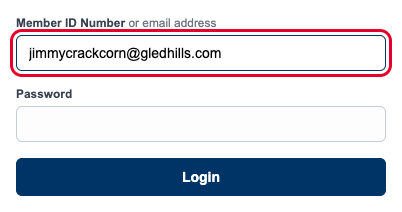
Go to PatrolCalendar.com and choose your patrol, or use the address your patrol gave you. Sign in with either your member ID number or the email address on your roster record. Your member ID is the number on your NSP card.
If you have never set a password, your last name works as one, and capitals do not matter. Forgotten it? Use under the login box: a reset link is emailed to you and is good for 15 minutes. More…
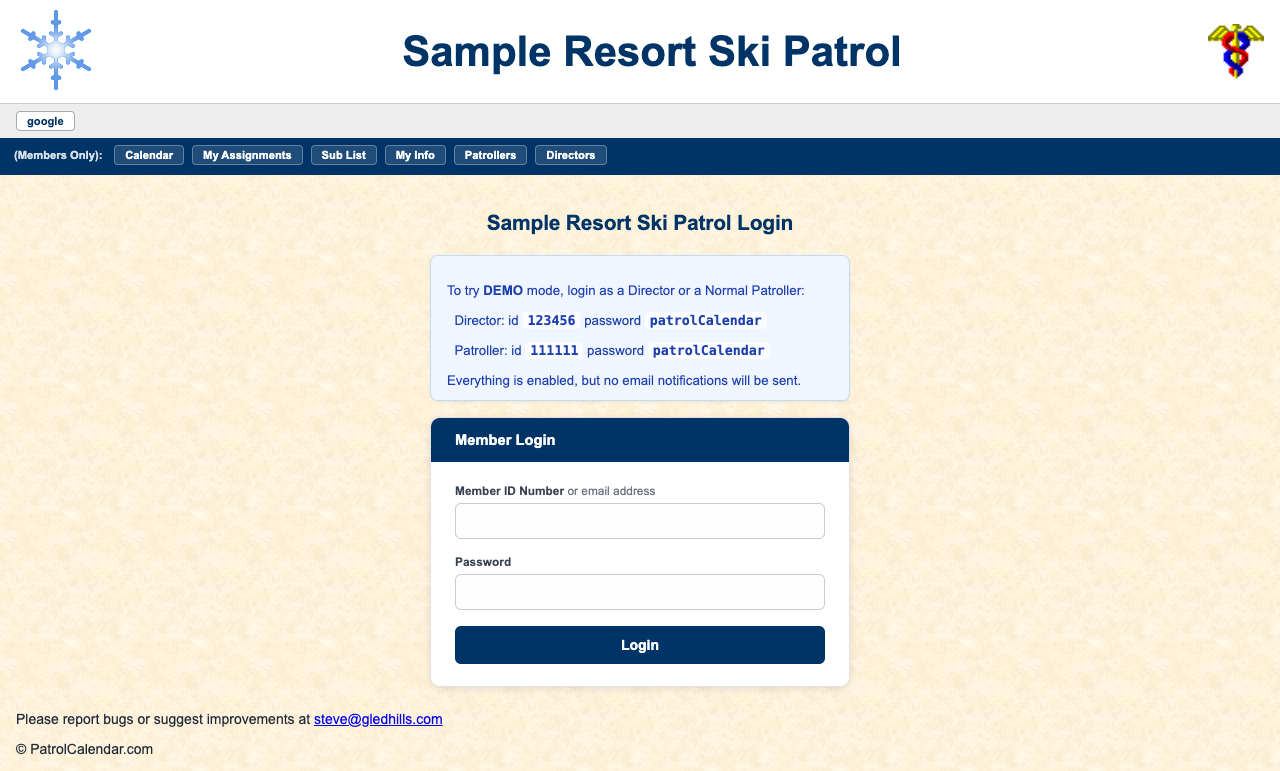
After signing in you land on the calendar. The blue Members Only bar across the top is how you get around: .
2. Check your details on My Info
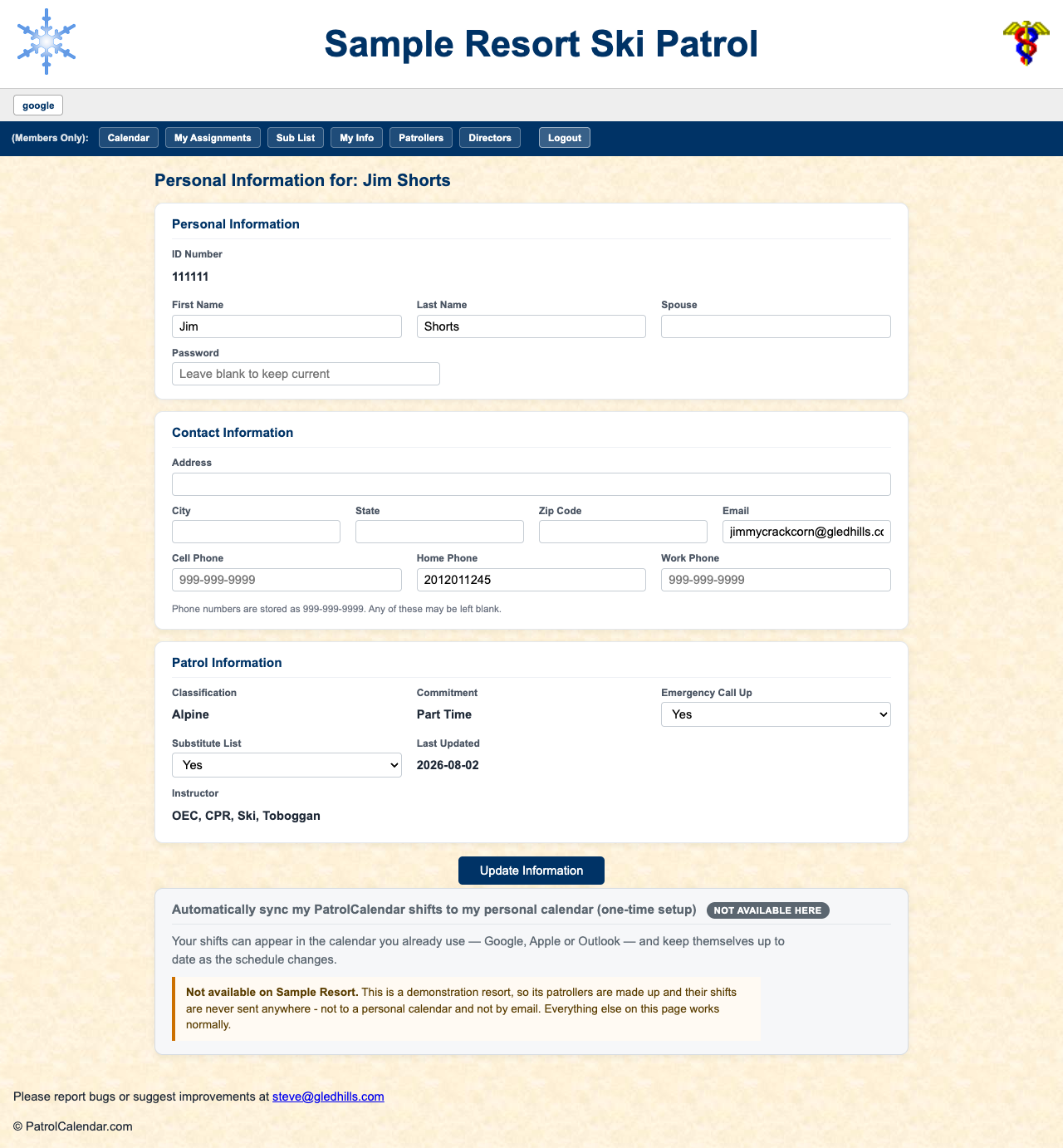
Open and make sure your email address is right. Shift reminders, swap notices and password resets all go there, so an old address means you quietly stop hearing from the patrol.
- Substitute List: say Yes and you are told when somebody gives up a shift, so you get first sight of it.
- Emergency Call Up: say Yes if you live near the hill and could come in at short notice.
- Password: type a new one to change it, or leave it blank to keep the current one.
- Phones are entered as 999-999-9999.
Classification, commitment and instructor qualifications are set by your directors. Press Update Information when you are done.
3. Reading the calendar
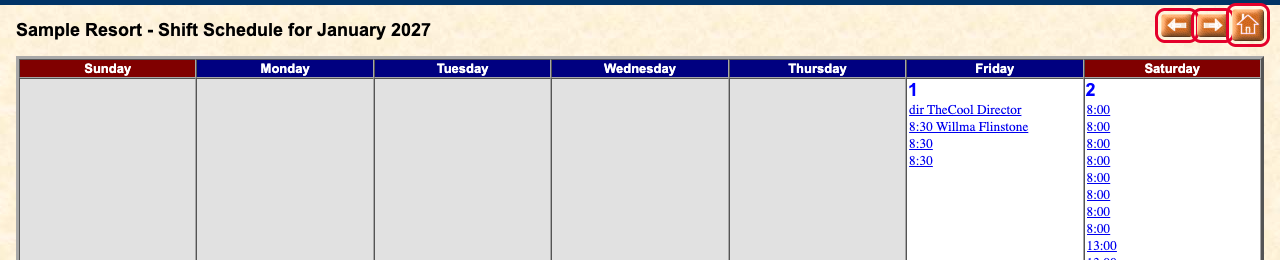
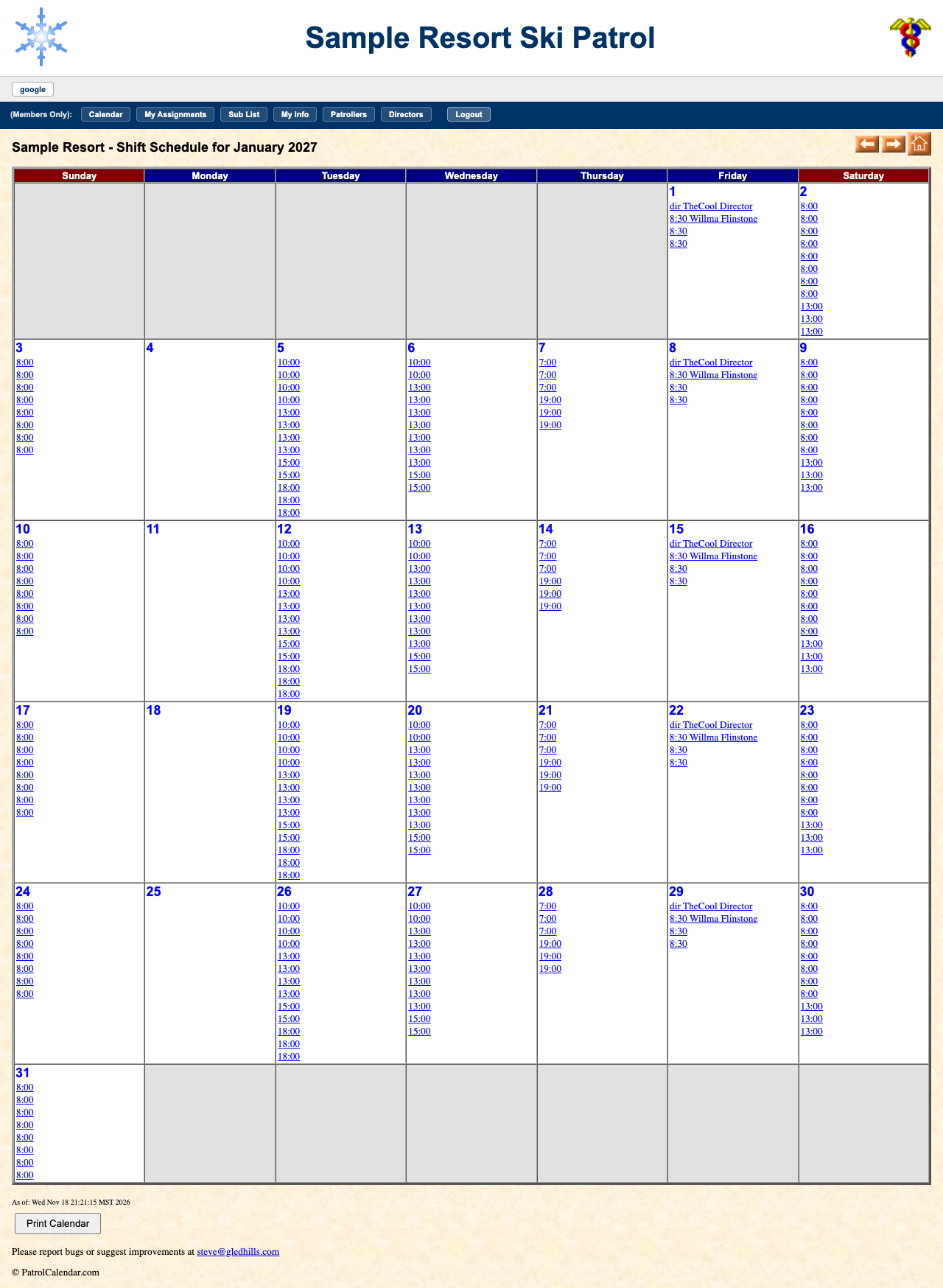
shows a month at a time. Each day lists its shifts: a time (or a label like dir) followed by the name of whoever has taken it. A time with no name after it is an open slot.
Use the arrows at the top right to move between months; the house returns to this month.
4. Signing up for a shift
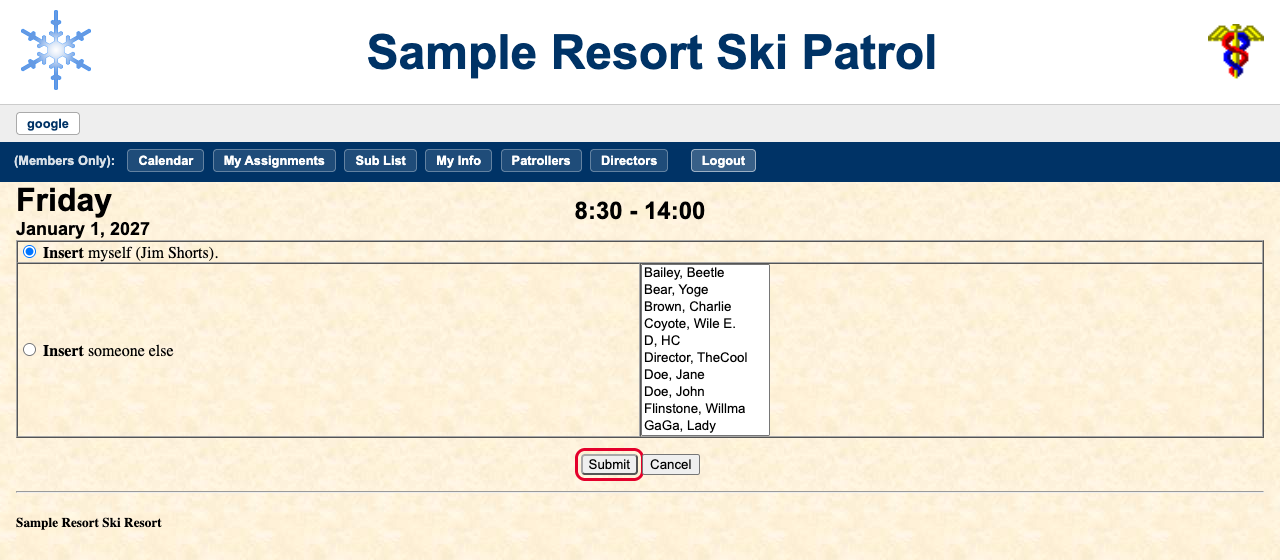
Click an open slot on the day and time you want. You are offered Insert myself (already selected) or Insert someone else, for when you are helping another patroller. Press Submit.
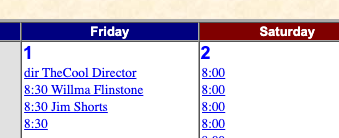
You are taken back to the calendar with your name in the slot.
5. My Assignments
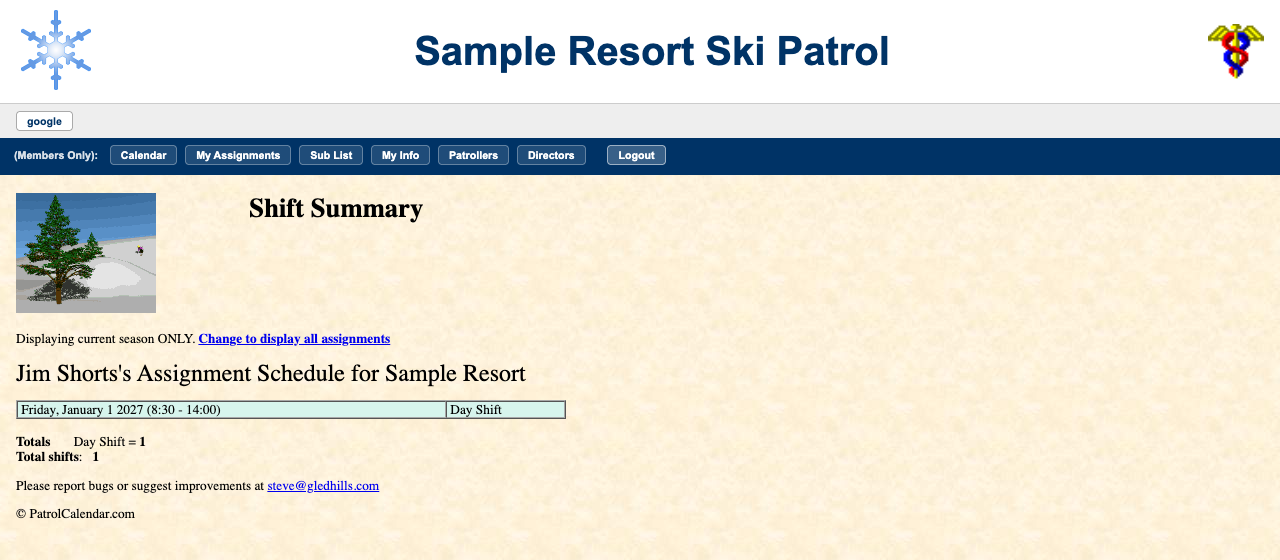
lists every shift you have taken this season, with totals by shift type. Change to display all assignments shows past seasons as well.
You will be emailed a reminder before each shift; how many days ahead depends on your patrol.
6. Changing or giving up a shift
Click your own name on the calendar. You can:
- Remove yourself from the shift.
- Highlight as Needs a Replacement: stay on it, but mark it so the patrol can see it needs covering. Better than removing yourself, because the slot does not silently go empty.
- Replace yourself with a named patroller you have arranged it with.
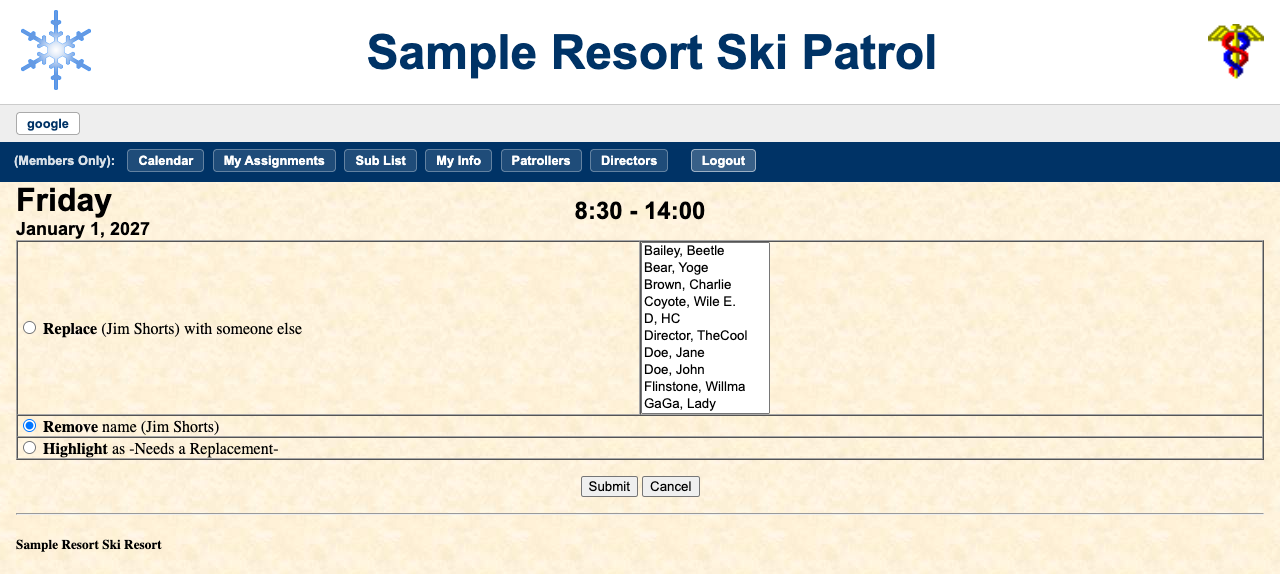
Anyone on the substitute list is emailed when a shift is given up. You can only change shifts still ahead of you, and your patrol may stop changes a set number of days before the shift; if the options are missing, that is why.
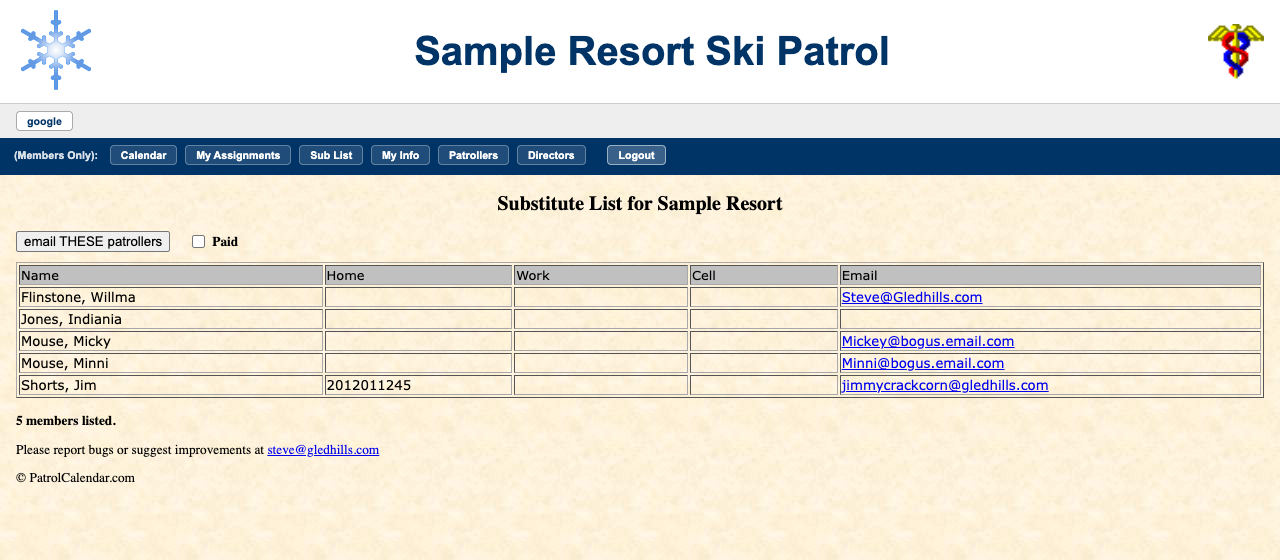
7. Sub List and Patrollers
shows who has volunteered to fill in, with their phone numbers and email, so you can ask someone directly.
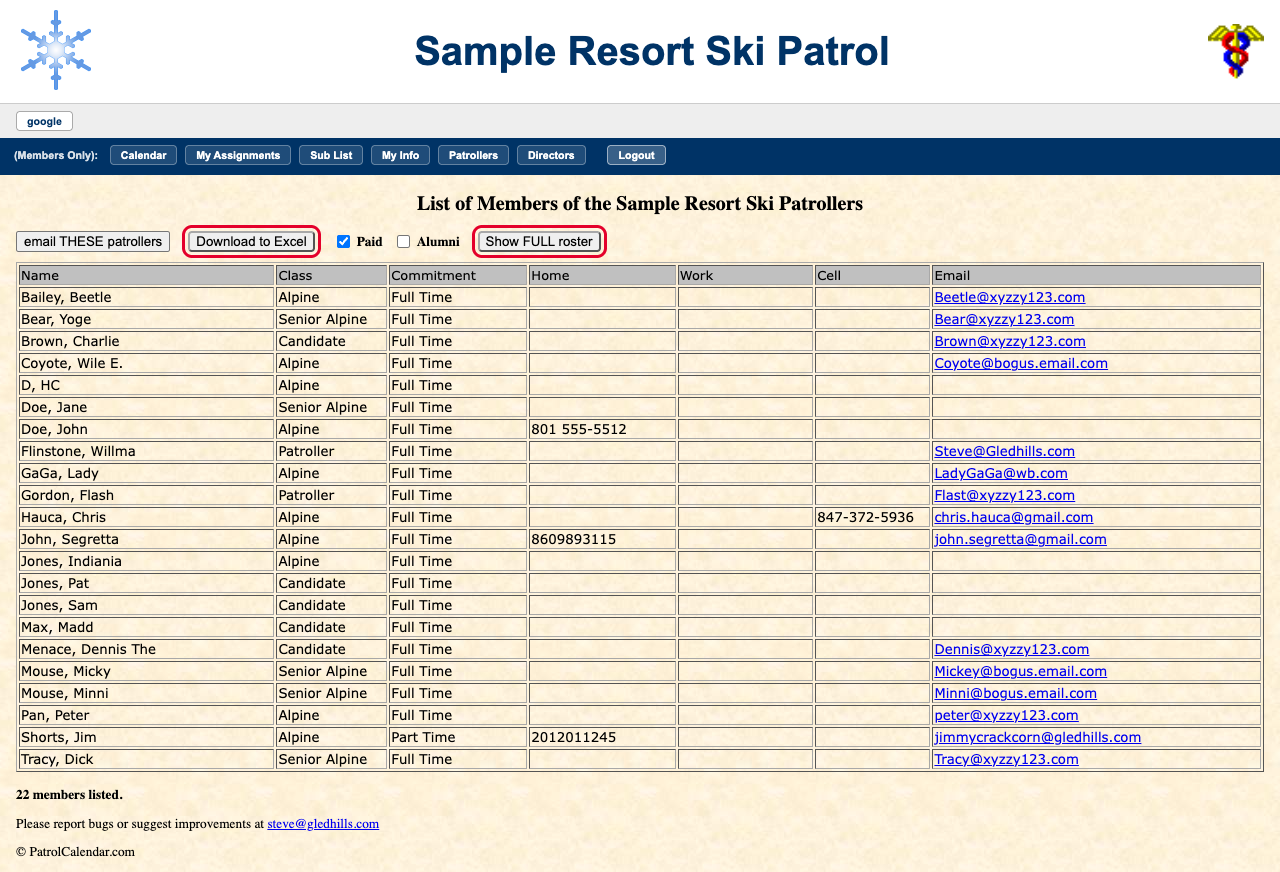
is the patrol roster. You can download it to Excel, switch between the trimmed and full roster, and (if your patrol allows it) email the people shown.
8. Your shifts on your phone's calendar
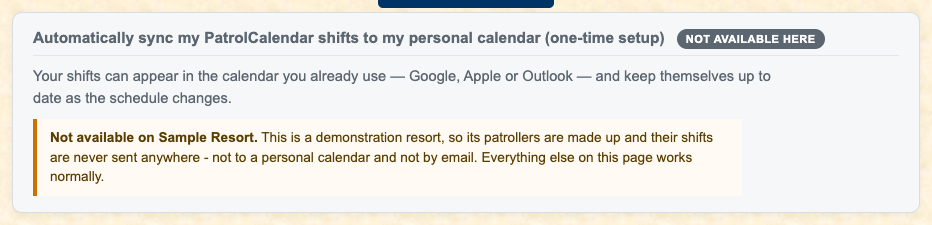
At the bottom of , press Create my calendar link, copy the link, and add it to Google, Apple or Outlook calendar; the page shows the steps for each. From then on your shifts appear and disappear by themselves. If you cannot see the option, your patrol has not switched it on yet. More…
PatrolCalendar is shift scheduling for ski patrols, maintained by one volunteer patroller and free to use. Questions or problems: Steve@Gledhills.com. Screenshots are from the Sample resort.